Posts

1D Animation Blend Trees Explained - Unity Game Development Tutorial

Image
In this Unity tutorial we're going to look at how animation blend trees can be used to blend two or more similar animations. We’ll see how we can use a simple one-dimensional blend tree to make a character’s animation blend between idle, walking, and running.

Using Terrain Tools to Create 3D Landscapes - Unity Game Development Tutorial

Image
In this Unity tutorial we're going to look at how we can use the Unity Terrain tool to easily create landscapes in our game. We’ll look at how to sculpt the Terrain, how to add textures, and how we can add scenery, such as trees and flowers.

Rotating in the Direction of Movement 2D - Unity Game Development Tutorial

Image
In this Unity tutorial we're going to look at how we can rotate a 2D object so that it faces the direction it’s moving in.

How to Use Lerp - Unity Game Development Tutorial

Image
In this Unity game development tutorial we're going to look at the mathematical function Lerp, or linear interpolation. The Lerp function allows us to linearly interpolate between two values, and is most commonly used for changing values over a period of time.  While its usage is really common in Unity, it's quite often misunderstood, and can easily be used in the wrong way. In this tutorial, we'll demonstrate how to use it correctly, and hopefully clear up any confusion. You can either watch the video version below or continue reading for written instructions. OK, we're going to start with this scene that has a single cube. We're going to add a script to this cube to move it from its starting position to a desired destination over a period of time. We'll select the cube in the Hierarchy. Then we’ll click on Add Component and add a new script.  We'll call this script LerpMovement. Before we update our script, let's have a look at the Unity docum...

Rotating Around a Point - Unity Game Development Tutorial

Image
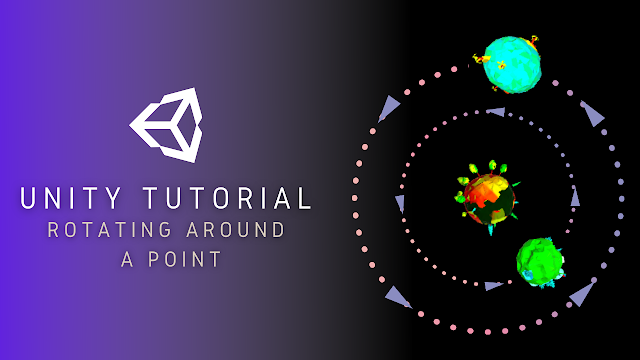
In this Unity game development tutorial we'll be looking at how to rotate a game object around a point. We'll get started by creating a new 3D project in Unity Hub. We’re going to make use of an asset from the asset store to help demonstrate this. To open the asset store we’ll click on Window->Asset Store from the main menu. Now, we’ll search for "Poly Planets", and find the free asset shown below. We'll select it and click import to load it into our project. We now have several planet prefabs in the project panel we can make use of. Let's choose the one called orange_planet, and drag it into the scene. We’ll then reset it’s transformations by clicking the three dots next to Transform in the Inspector panel and selecting Reset. Now that we have a planet in the scene, let’s make it rotate with a very simple script. We’ll click on the 'Add Component' button in the Inspector panel, search for script and click 'New Script'. We'll call the ne...

Prevent the Camera View Being Blocked by Obstacles - Unity Game Development Tutorial

Image
In this Unity game development tutorial we're going to look at how we can configure our camera, so that it automatically adjusts the view when the line of sight to our character is blocked. You can either watch the video version below or continue reading for written instructions. OK, we'll start with this scene that has a character and some obstacles.  We've currently got a Cinemachine virtual camera that follows the character around, but at the moment, if we move behind the wall, our view is blocked. We're now going to use another component of Cinemachine to prevent the view from being blocked. We'll click on the Extensions dropdown and select Cinemachine Collider. This adds a component that will check if the view to the target is blocked and will automatically try to resolve it. There are a few strategies for how it tries to do this.  The default strategy is 'Preserve Camera Height', which will attempt to change the view while staying at the origi...

How to use Animation Transitions - Unity Game Development Tutorial

Image
In this Unity game development tutorial we're going to look at how we can easily control animation transitions from our scripts. You can either watch the video version below or continue reading for written instructions. OK, we'll start with this scene that has a character and some obstacles.  The character has a Character Controller component attached, that is used to move the character around and handle collisions with the obstacles. We've also set up a Cinemachine camera to follow the character around. At the moment, the character isn't animated and just glides around the scene. We're going to replace this with an animated character from Mixamo.com . Mixamo is a free library containing thousands of character animations. We have a dedicated tutorial on this that goes into detail on all the available options if you want to know more. Getting Started with Character Animation Using Mixamo First of all, we’ll go to the characters tab, and we'll scroll down...